
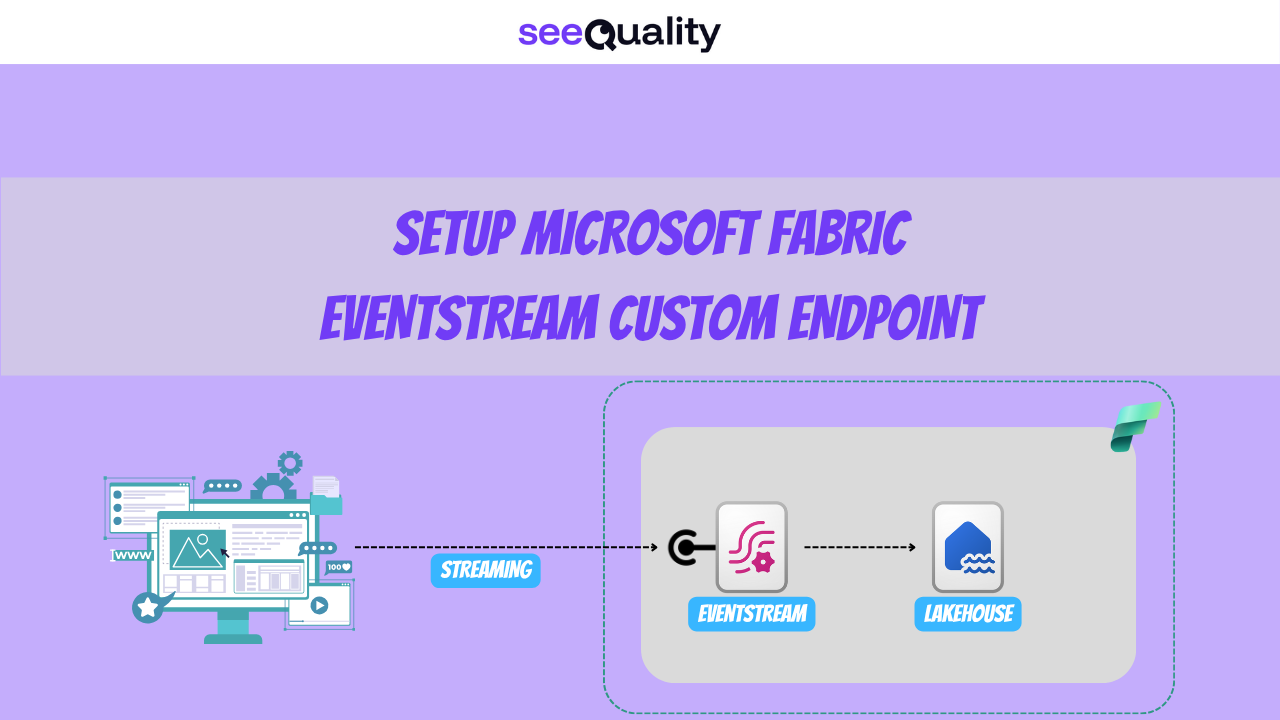
One of the coolest features in Microsoft Fabric EventStream is the ability to integrate your application by adding a custom endpoint or app as a source, allowing you to send real-time events to the eventstream via the provided connection endpoint or using the Apache Kafka protocol.
In today’s article, I prepared a short tutorial to show that. First, let’s create our EventStream. It is as easy as clicking New Item within the Fabric Workspace and choosing Eventstream as shown below:


When our EventStream is ready, we can add a source, and in our case, it is just a custom endpoint.

In EventStream, we can add transformations for our data, such as aggregate, group by, or union, but these are not important for this article, so we will skip them. As a destination, we can send our data to many places, but in our case, it will be a Lakehouse that I prepared in the same workspace as the EventStream. When we choose Lakehouse, we must provide the target table name and input data format (in our case, JSON). I recommend looking at the advanced settings, where we can define the minimum number of rows per file and how long EventStream will wait until data is materialized in the file. This is crucial because it helps us avoid the small file problem, which is especially relevant in streaming scenarios.


Our flow is mostly ready. Now we can select our Custom Endpoint, where we will have the option to choose a protocol (EventHub, AMQP, or Kafka). We will send it using EventHub, which offers two authentication options: Entra ID and SAS token. In most cases, I strongly recommend using Entra-based authentication, where we can set up an app with a Service Principal. In some cases, this may not be possible, so we can use an SAS token instead. In such cases, we should have a process for rotating the primary/secondary key to avoid issues. For our simple scenario, I will use SAS key authentication, but please keep in mind that this should be avoided.


Our EventStream is ready, so we can publish it and prepare the code to send data to the endpoint. My sample script is shown below:
import asyncio
import json
from azure.eventhub.aio import EventHubProducerClient
from azure.eventhub import EventData
from datetime import datetime

# Your Fabric Event Stream connection string
CONNECTION_STR = "Endpoint=sb://esehamhezudoiumn6uuhcp.servicebus.windows.net/;SharedAccessKeyName=key_158254a7-d7ca-4ebc-bbf7-9ffde58c4cc5;SharedAccessKey=MJYIzLda9cWWir1FMKJwdT3noESeH31wJ+AEhFTBotY=;EntityPath=es_84b711ba-1257-4295-8215-dce073ad86ea"

# Set the number of events to send here
NUM_EVENTS = 10

async def send_multiple_events(num_events):
    producer = EventHubProducerClient.from_connection_string(CONNECTION_STR)
    async with producer:
        events = []
        for i in range(num_events):
            event_data = {
  "weather": [
    {
      "location": {
        "city": "New York",
        "latitude": 40.7128,
        "longitude": -74.0060
      },
      "timestamp": "2025-10-06T16:30:00-04:00",
      "conditions": {
        "temperature_celsius": 18.5,
        "humidity_percent": 65,
        "wind_speed_kmh": 12,
        "wind_direction_degrees": 270,
        "precipitation_mm": 0.2,
        "cloud_cover_percent": 30
      }
    },
    {
      "location": {
        "city": "London",
        "latitude": 51.5074,
        "longitude": -0.1278
      },
      "timestamp": "2025-10-06T21:30:00+01:00",
      "conditions": {
        "temperature_celsius": 13.2,
        "humidity_percent": 80,
        "wind_speed_kmh": 15,
        "wind_direction_degrees": 180,
        "precipitation_mm": 1.5,
        "cloud_cover_percent": 70
      }
    }
  ]
}
            events.append(EventData(json.dumps(event_data)))
        await producer.send_batch(events)
        print(f"Successfully sent event(s)")

if __name__ == "__main__":
    print(f"Sending {NUM_EVENTS} event(s) to Fabric Event Stream...")
    asyncio.run(send_multiple_events(NUM_EVENTS))
    print("Done!")
The script uses Python’s asyncio for asynchronous operations and the Azure EventHub library to send data to your EventStream. It constructs a JSON payload with weather data for two cities (New York and London) and sends it to the EventStream’s custom endpoint.
In the beggining our script imports necessary libraries:
– asyncio enables asynchronous operations,
– json handles data serialization,
– azure.eventhub.aio provides the tools (EventHubProducerClient and EventData) to interact via Azure EventHub protocol.
After that we have connection string definition for your EventStream’s custom endpoint, which includes the EventHub namespace, shared access key name, key, and entity path. The NUM_EVENTS variable is set to 10, though the script sends only one batch of data.
The key part of the script is an asynchronous function send_multiple_events that takes the number of events as input. It creates an EventHubProducerClient using the connection string. Within an async context, it builds a list of events. The script creates a single JSON object that is converted to a string and wrapped in an EventData object, then added to the events list. The batch of events is sent to the EventStream using send_batch.
The last part of the script checks if the script is running as the main module, prints a message indicating the number of events being sent, runs the send_multiple_events function using asyncio.run. As the result you can see that our messages are saved in the lakehouse:

All of it is achieved with zero code on the Fabric side, and the entire setup can be implemented in no more than 15 minutes. I encourage you to test this functionality yourself and see how it works, especially since it is so easy to use and can be a useful tool in some scenarios.

- Power BI Integration with GITHUB – March 31, 2026
- V-Order in Microsoft Fabric – what is that? – March 9, 2026
- Recovering dropped tables in Azure Databricks with UNDROP TABLE – February 26, 2026

Leave a Reply