
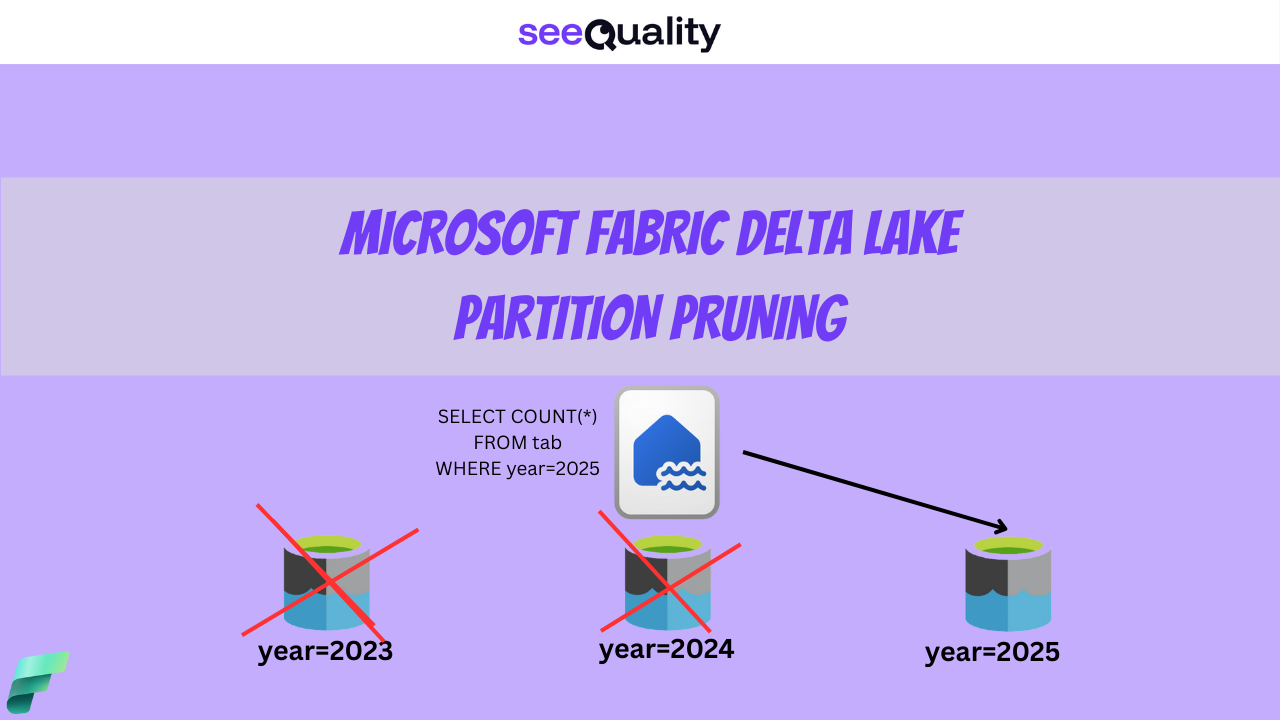
A Delta table stored in your data lake is made up of Parquet files. Usually, there is more than one file. This happens when you have a lot of data, so it makes sense to break it into smaller pieces. It also happens when you often add new data or make changes. Parquet files cannot be changed once created, so every update or insert creates new files.
As your data gets bigger, it is a good idea to use partitioning for your Delta tables. You, as the person building or managing the data, must set this up yourself. Tools like Microsoft Fabric, Spark, or Delta Lake do not do it automatically.
Partitioning is a method to divide a big table into smaller, easier-to-handle groups. Instead of checking every row when running a query, partitioning by a column lets Spark look only at the relevant parts. This approach speeds up queries and helps control costs in Microsoft Fabric because less work is needed to skip unnecessary data. It is a straightforward technique that can greatly improve performance and growth in your data lakehouse setup.
How it works: You select one or more columns to organize the files. This creates a separate folder for each unique value in that column (for example, one folder per date or per region). Each folder then contains its own set of Parquet files. When a query filters by the partitioned column, Spark can quickly skip unrelated folders and find results faster.
In this article, I will show you how to partition a table and how to check if partition elimination happens. First of all, let’s generate a sample dataset that will help with our tests. It is self-explanatory, so I will not describe it line by line, but I wanted to highlight one method of a DataFrame- partitionBy. Here, we define how the data should be partitioned.
from pyspark.sql.functions import year, month, col, rand, floor, to_date, date_add, lit, datediff
from pyspark.sql.types import StructType, StructField, IntegerType, DoubleType, DateType

table_name = "fact_transactions_ym_partitioned"   # Target Delta table name
date_column = "transaction_date"                  # Column containing the date
num_rows = 100000                                 # Number of sample rows to generate
start_year = 2023                                 # Start year for random dates
end_year = 2026                                   # End year for random dates (inclusive)

schema = StructType([
    StructField("transaction_id", IntegerType(), True),
    StructField("customer_id", IntegerType(), True),
    StructField("product_id", IntegerType(), True),
    StructField("quantity", IntegerType(), True),
    StructField("amount", DoubleType(), True),
    StructField(date_column, DateType(), True)
])

df = spark.range(0, num_rows).select(
    col("id").alias("transaction_id"),
    (floor(rand(seed=42) * 10000) + 1).cast(IntegerType()).alias("customer_id"),
    (floor(rand(seed=43) * 5000) + 1).cast(IntegerType()).alias("product_id"),
    (floor(rand(seed=44) * 10) + 1).cast(IntegerType()).alias("quantity"),
    (floor(rand(seed=45) * 1000) + 10).cast(DoubleType()).alias("amount"),
    # Generate random dates between start_year-01-01 and end_year-12-31
    to_date(
        date_add(
            lit(f"{start_year}-01-01"),
            floor(rand(seed=46) * datediff(lit(f"{end_year}-12-31"), lit(f"{start_year}-01-01"))).cast("int")
        )
    ).alias(date_column)
)

df_partitioned = df \
    .withColumn("year", year(col(date_column))) \
    .withColumn("month", month(col(date_column)))

# Write to a managed Delta table, partitioned by year and month
df_partitioned.write \
    .format("delta") \
    .mode("overwrite") \
    .partitionBy("year", "month") \
    .option("overwriteSchema", "true") \
    .saveAsTable(table_name)
When I executed the script above in my lakehouse, a new Delta table appeared with the following structure, which is visible in the table below:

From this very simplistic Lakehouse explorer view, I can’t see if the table is partitioned or not, but I can easily check this using the DESCRIBE TABLE SQL command:
%%sql

DESCRIBE TABLE fact_transactions_ym_partitioned
Partitioning information is available in the last columns of a result.

To check how many partitions we have, there are many different methods. One of them is to simply count the distinct number of values in the columns chosen as partition keys:
%%sql

SELECT COUNT(DISTINCT year,month) number_of_partition_keys
FROM fact_transactions_ym_partitioned

We can also create a simple function that uses mssparkutils.fs.ls to print the entire folder structure – just so we can see with our own eyes that the table is physically partitioned on OneLake:
def list_folders_recursively(path: str = "Files/", prefix: str = ""):
    items = mssparkutils.fs.ls(path)
    folders = [item for item in items if item.isDir]

    for i, folder in enumerate(folders):
        is_last = (i == len(folders) - 1)
        print(prefix + ("└── " if is_last else "├── ") + folder.name + "/")
        # Recurse into subfolder
        new_prefix = prefix + ("    " if is_last else "│   ")
        list_folders_recursively(folder.path, new_prefix)

print("Tables/fact_transactions_ym_partitioned/")
list_folders_recursively("Tables/fact_transactions_ym_partitioned/")

Everything looks correct, but just to show all the options: if you don’t like coding, you can simply right-click the table and choose View files from the context menu. It will give the same result as above:


Great, our table is now correctly partitioned. Let’s verify if partition elimination (also known as partition pruning) actually works. As theory predicts, pruning requires filtering on partition columns, so we’ll start simple: counting rows for the year 2025 (our first partition column).
%%sql

SELECT COUNT(*) FROM fact_transactions_ym_partitioned
WHERE year = 2025
From the result alone, we can’t tell if partition pruning worked, so we need to drill into the Spark jobs. Click one of the links in the Description column to open the Spark UI, where all details about jobs, stages, and queries are available.

Once in the Spark UI, navigate to the SQL / DataFrame tab, find the query you want to analyze, and click on it.

After clicking specific query you will see DAG where the first task is to scan parquet, you can see there that number of files read is 4 and number of paritions read is 4. From our test above we know that there is many more parititons so partition pruning works as we expected. One worrying thing can be that we have only one file per partition which means that we overpatitioned our table, but it is ok just for a demo.

At the bottom of the screen, you’ll also see additional details like the Physical Plan. Look for the PartitionFilters property, which shows exactly how the filter was applied.

Our second test will also be straightforward: we’ll filter on both partition columns and verify that it works.
%%sql

SELECT COUNT(*) FROM fact_transactions_ym_partitioned
WHERE year = 2025 AND month=12
In the Spark UI once again, we can see that only one partition was read, exactly as expected. Great!

Our final test gets more interesting: we’ll filter only on the second partition key column. Can Spark eliminate partitions using just the second key? Let’s find out.
%%sql

SELECT COUNT(*) FROM fact_transactions_ym_partitioned
WHERE month=12
As shown in the screenshot below, it works great. Our table has only four years of data, but filtering for just December scanned only four partitions – which is perfect.
Partitioning in Delta Lake isn’t a cure-all. Choosing the wrong columns can actually hurt performance rather than help it. The problem is straightforward: when you partition by columns rarely used in filters, the engine scans every file across all partitions to locate your data—adding unnecessary overhead. A non-partitioned table might scan fewer files in comparison.
Instead, opt for columns you frequently filter on, like dates, companies, or products, to significantly speed up most queries. Keep in mind that small tables usually don’t benefit from partitioning. Breaking them into tiny partitions can increase compute costs. Spark handles large Parquet files efficiently, so aim for the right balance. In some cases partitioning is not recommended technique, Databricks is still saying that Liquid Clustering is a better option. Delta Lake partitioning can dramatically boost query performance in your Microsoft Fabric lakehouse but please choose proper columns for your partitions and test if it works!
That is not everything regarding partitions, in the next article I will write few words about Dynamic Partition Pruning – stay tuned.

- Power BI Integration with GITHUB – March 31, 2026
- V-Order in Microsoft Fabric – what is that? – March 9, 2026
- Recovering dropped tables in Azure Databricks with UNDROP TABLE – February 26, 2026

Leave a Reply