
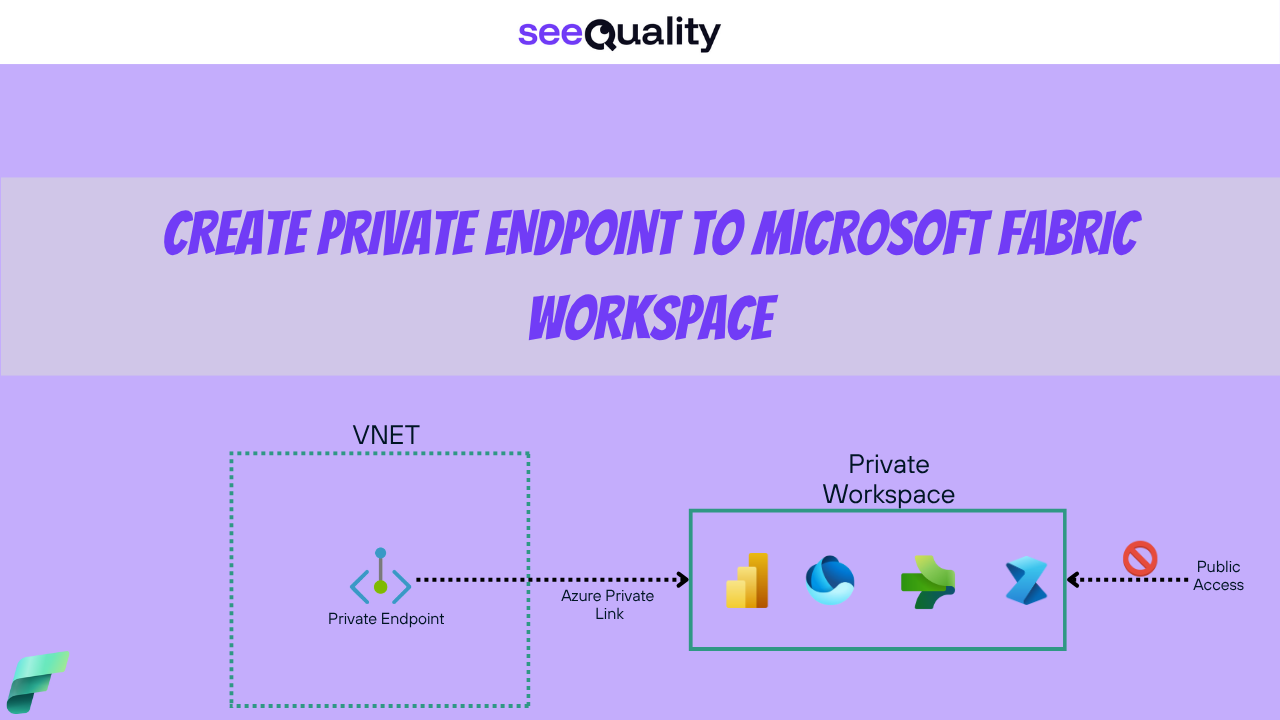
Private links establish a secure, private connection between your virtual network and Microsoft Fabric, preventing public internet access to your data and minimizing risks of unauthorized access or data breaches. Using Azure Private Link and Azure Networking private endpoints, data traffic is routed privately through Microsoft’s backbone network infrastructure, bypassing the public internet.

Fabric supports private links at both the tenant and workspace levels. I wanted to test this functionality and share a tutorial based on my own infrastructure to show you how easy it is to set up secure access. First, we need to enable the private link functionality at the workspace level—this feature is still in preview. To configure it, go to the admin panel, navigate to Advanced Networking, and locate Configure workspace-level inbound network rules (preview). Enable this option. Don’t worry—this setting only enables the functionality and does not affect existing workspaces. Once the setting is enabled in the admin panel, create a new workspace (or use an existing one). In the workspace settings under Inbound Networking, you’ll see options to either allow all connections or restrict connections to only those from workspace-level private links. For now, choose the first option, as it allows both public and private access, which is suitable for testing purposes.


On the Power BI side, we are ready to proceed. For testing purposes, we will create a virtual machine from which we will attempt to access our workspace. To do this, let’s set up the entire infrastructure on the Azure side. Please note that we are creating these resources manually for testing purposes. In a real-world scenario, I recommend following your organization’s principles for resource creation, preferably using infrastructure-as-code tools like Bicep or Terraform. First, create a resource group, which is a straightforward task. You only need to specify the subscription, name, and region for the resource group.

Once the Resource Group is created, we can set up the network. For this test, there’s nothing particularly complex; we only need to configure a sufficiently large network, in this case, a /20 subnet. For security, ensure that Azure Bastion is enabled to allow secure connections to the virtual machine. Azure Bastion is a managed service that provides secure RDP and SSH access to virtual machines over SSL directly through the Azure portal, eliminating the need for public IP addresses. Azure Bastion will create a dedicated subnet for itself.


With the networking configured, we can now create the virtual machine (VM). You can set it up as desired, but the simplest option is to create a Windows-based VM without any availability options. This VM will be used solely to connect to the Power BI service from within the network. To create the VM, go to the Azure portal, navigate to the Virtual Machines section, and select Create. Choose a Windows Server image, such as Windows Server 2022 Datacenter, as it’s widely compatible for testing purposes. Select a VM size that meets basic requirements, like a Standard_D2s_v3, which offers a good balance of CPU and memory for this test. Ensure the VM is placed in the same resource group and region as your network for consistency. Under the Networking tab, assign the VM to the previously created /20 subnet and confirm that Azure Bastion is enabled for secure access. Once the VM is deployed, use Azure Bastion to connect to it via RDP and test the connection to the Power BI service to verify that the private link setup is functioning correctly.


We can place our VM inside the network we created previously and ensure all public inbound ports are closed, as we will use Azure Bastion to securely access the VM.


Our infrastructure is almost ready. The final step is to create an additional resource for the private endpoint to connect to, representing the Power BI Workspace we will use. Since there is no graphical interface for this, we need a custom deployment.


When editing the template, we should paste the script below and modify only the resource name, which should be a meaningful, functional name. We must also provide the tenantId and workspaceId.
{
      "$schema": "http://schema.management.azure.com/schemas/2015-01-01/deploymentTemplate.json#",
      "contentVersion": "1.0.0.0",
      "parameters": {},
      "resources": [
        {
          "type": "Microsoft.Fabric/privateLinkServicesForFabric",
          "apiVersion": "2024-06-01",
          "name": "<resource-name>",
          "location": "global",
          "properties": {
            "tenantId": "<tenant-id>",
            "workspaceId": "<workspace-id>"
          }
        }
      ]
    }
There are many ways to obtain the tenant ID and workspace ID. For the tenant ID, the easiest method is to connect to Power BI, click your account icon, and hover over the tenant name to display the ID. The workspace ID can be obtained from the URL, as shown in the screenshot below.


The final step is to create a private endpoint, which is straightforward and can be set up as shown in the screenshots. The most important part is selecting Microsoft.Fabric/privateLinkServicesForFabric as the resource type. Additionally, we must create a private DNS zone to resolve the name to the correct private IP address.


Now we can connect to our VM via Azure Bastion to test connectivity, as our network should already provide private connectivity from within. To verify that the connection is private, we can use the standard nslookup command with a URL structured as {workspaceId}.z{xy}.w.api.fabric.microsoft.com, where workspaceId is the identifier used previously (without the – character), and xy represents the first two characters of the workspaceId. Running this command should return the private IP address from our virtual network. As you can see on the below screenshot command returned 10.0.0.5 which is first assigned ip from our network means that private endpoint and dns resolution works as it should.


If the test is successful, we can return to the workspace settings and enable the setting discussed earlier, ‘Allow connections only from workspace-level private links.’ This ensures that the workspace and all its items are inaccessible from the public internet. Be setting this up we will be notified about this fact.


The final test is to attempt accessing the workspace from the public internet and from the VM. As shown below, it works as expected.


It works very well and can be useful in many scenarios. However, it is still in preview, so we should review its limitations. For example, not all Fabric items are supported. There are also API limitations to be aware of, so ensure you review them before planning to use this feature. All limitations are listed here. That’s all for to day, thanks!

- Power BI Integration with GITHUB – March 31, 2026
- V-Order in Microsoft Fabric – what is that? – March 9, 2026
- Recovering dropped tables in Azure Databricks with UNDROP TABLE – February 26, 2026

Leave a Reply